
썸네일 비율과 크롭: 16:9 썸네일을 1:1·4:5·9:16으로 잘라 본 결과
유튜브용으로 만든 16:9 썸네일을 인스타그램 게시물(1:1·4:5)이나 쇼츠·릴스(9:16)에도 쓰려고 자르면, 가장 중요한 제목 글자가 잘려 나가는 일이 자주 생깁니다. 이 글은 왼쪽에 큰 제목, 오른쪽에 음식 사진이 있는 전형적인 썸네일을 비율별로 잘라 보고, 어디가 남고 어디가 사라지는지, 그리고 저장 형식에 따라 용량이 얼마나 달라지는지 확인한 기록입니다.
먼저 결론
- 16:9 썸네일을 가운데 기준으로 자르면 왼쪽 제목이 잘렸습니다. 여러 비율에 쓸 계획이면 제목과 얼굴을 화면 가운데 약 3분의 1 안에 두세요.
- 이미 만든 썸네일은 가운데가 아니라 중요한 요소 쪽으로 X 좌표를 옮겨서 자르면 됩니다.
- 1920×1080 PNG는 3.75 MiB로, 유튜브 모바일 업로드 제한 2MB를 넘었습니다. JPEG 85%로 저장하면 361 KiB입니다.
- 유튜브 도움말은 현재 동영상 썸네일로 3840×2160, 최소 너비 640px을 권장합니다(2026-09-18 확인).
비율과 픽셀 크기는 다른 설정
16:9는 가로와 세로의 비율이고, 1280×720은 실제 픽셀 수입니다. 1280×720, 1920×1080, 3840×2160은 모두 16:9입니다. 크롭은 원본에서 영역을 잘라내는 작업이고, 리사이즈는 전체 픽셀 수를 바꾸는 작업입니다. 원하는 결과가 "1:1 정사각형 1080×1080"이라면 먼저 1:1로 자르고, 그다음 1080×1080으로 크기를 맞추는 두 단계가 필요합니다.
플랫폼 권장 규격 (유튜브 공식 도움말, 2026-09-18 확인)
| 항목 | 권장 내용 |
|---|---|
| 동영상 썸네일 | 16:9, 3840×2160 권장, 최소 너비 640px |
| Shorts 썸네일 | 9:16, 2160×3840 권장, 최소 높이 640px |
| 팟캐스트 재생목록 | 1:1 |
| 파일 형식 | JPG, PNG 등 |
| 용량 제한 | 모바일 업로드 2MB(팟캐스트 10MB), 데스크톱 업로드 50MB |
| 세로 영상에 16:9 썸네일 | 홈·탐색·구독 화면에서는 자동 생성된 4:5 썸네일로 대체될 수 있음 |
플랫폼 규격은 자주 바뀝니다. 올리기 전에 해당 서비스의 최신 도움말을 한 번 더 확인하세요.
어떻게 시험했나
GPT 이미지 모델로 2688×1520 크기의 요리 영상 썸네일을 만들었습니다. 왼쪽에 "초간단" 배지와 큰 제목 "5분 크림 파스타", 오른쪽에 파스타 사진이 있는 구성입니다. 이 원본을 위아래 4px씩 잘라 정확한 16:9(2688×1512)로 맞춘 뒤, 이 사이트의 이미지 변환기와 같은 방식(브라우저 canvas)으로 1280×720과 1920×1080으로 줄이고 PNG·JPEG 85%·WEBP 85%로 저장했습니다. 크롭은 1280×720 결과를 기준으로 계산했습니다. 측정 환경은 2026년 9월, Windows의 Chromium 152입니다.
결과 1 — 가운데 기준으로 자르면 무엇이 남나
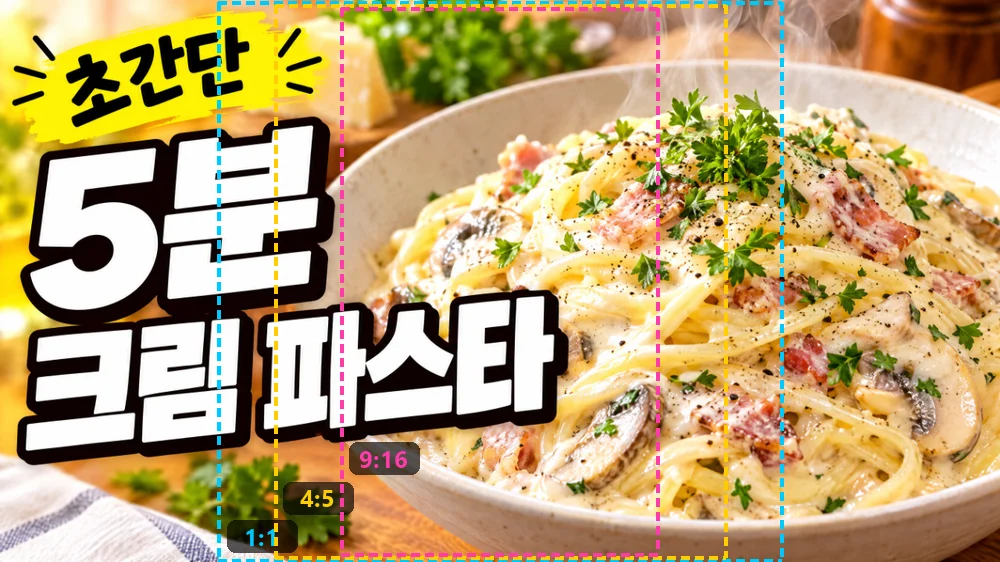
| 비율 | 1280×720에서 크롭 크기 | 가운데 기준 X | 원본 가로 중 남는 비율 |
|---|---|---|---|
| 1:1 | 720×720 | 280 | 56.3% |
| 4:5 | 576×720 | 352 | 45.0% |
| 9:16 | 405×720 | 437 (437.5) | 31.6% |
X는 (1280 − 크롭 너비) ÷ 2로 계산합니다. 9:16은 가로의 3분의 1도 남지 않아서, 가운데 기준으로 자르면 파스타 그릇 가운데만 남습니다.
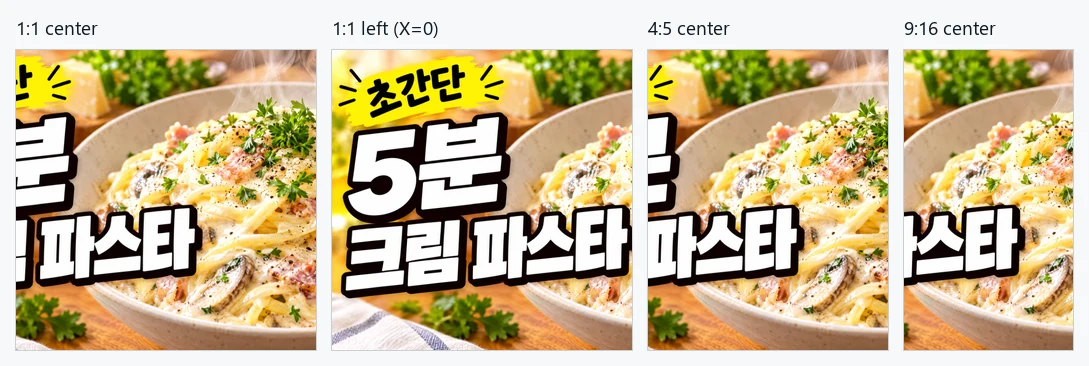
가운데 기준 1:1에서는 "5분"과 "크림 파스타" 각 줄의 앞부분이 잘렸고, 4:5와 9:16에서는 제목을 거의 알아볼 수 없었습니다. 같은 1:1이라도 X를 0으로 옮기면 배지와 제목이 모두 남고, 대신 오른쪽 파스타 일부가 빠집니다. 크롭 도구에서 비율만 고르고 끝내지 말고, X 좌표를 중요한 요소 쪽으로 옮겨 확인하세요.
결과 2 — 형식별 용량
| 크기 | PNG | JPEG 85% | WEBP 85% |
|---|---|---|---|
| 1280×720 | 1,850.9 KiB | 190.0 KiB | 140.0 KiB |
| 1920×1080 | 3,843.8 KiB | 360.7 KiB | 257.8 KiB |
사진이 들어간 썸네일은 PNG가 매우 큽니다. 1920×1080 PNG는 유튜브의 모바일 업로드 제한인 2MB를 넘었고, 1280×720 PNG도 제한에 가까웠습니다. 유튜브 도움말이 예로 드는 형식은 JPG와 PNG이므로, 썸네일은 JPEG 85%로 저장하는 것이 가장 무난합니다. WEBP는 더 작았지만 업로드 형식으로 받지 않는 서비스가 있으니 먼저 확인하세요.
권장 해상도는 3840×2160이지만, 원본보다 크게 늘린다고 선명해지지는 않습니다. 원본 촬영본이나 디자인 파일이 크다면 크게 내보내고, 작다면 원본 크기 그대로 올리는 편이 낫습니다.
여러 비율에 쓸 썸네일을 만드는 법
- 처음부터 안전 영역을 정합니다. 1280×720 기준 가운데 X=437~842(너비 405px)는 1:1·4:5·9:16 어느 쪽으로 가운데를 잘라도 남는 영역입니다. 제목과 얼굴을 여기 가깝게 두세요.
- 비율별로 따로 자릅니다. 이미지 크롭 도구에서 비율 프리셋을 고른 뒤, X·Y 값을 옮겨 중요한 요소가 들어오게 합니다. 자물쇠를 켜면 다음 이미지에도 같은 값이 유지됩니다.
- 최종 크기로 맞춥니다. 잘라낸 결과를 이미지 변환기에 넣어 가로세로 픽셀을 설정하고 JPEG 85%로 저장합니다.
- 실제 화면에서 확인합니다. 업로드 후 휴대폰 목록 화면에서 글자가 읽히는지, 재생 시간 표시나 버튼에 가리지 않는지 봅니다.
정확한 픽셀로 자르는 예
이미지 크롭 도구의 1600×1200 샘플에서 1280×720을 가운데로 잘라내려면, 자유 비율에서 너비 1280, 높이 720을 입력하고 중앙 배치를 누릅니다. 계산상 X=(1600−1280)÷2=160, Y=(1200−720)÷2=240이며, 확대 없이 원본의 일부를 잘라내므로 결과는 정확히 1280×720입니다. 원본이 목표 크기보다 작으면 영역이 원본 안으로 제한되니, 저장 전에 숫자를 다시 확인하세요.
자주 하는 실수
- 비율만 맞추고 픽셀 크기를 확인하지 않기: 16:9라도 640px보다 작으면 유튜브 최소 너비에 못 미칩니다.
- 사진 썸네일을 PNG로 올리기: 용량 제한에 걸리기 쉽습니다.
- 가장자리에 글자 두기: 다른 비율로 잘리거나 재생 시간 표시에 가려집니다.
- 작은 원본을 크게 늘리기: 흐려질 뿐 선명해지지 않습니다.
이 도구의 동작과 한계
이미지 크롭 도구와 이미지 변환기는 모두 브라우저 안에서 동작하며, 원본 파일은 바뀌지 않고 서버로 올라가지도 않습니다. PNG는 잘라낸 픽셀을 손실 없이 저장하고, JPEG·WEBP는 선택한 품질로 다시 압축하므로 글자 주변을 확대해 확인하세요. 위의 용량은 이 시험 원본의 결과이며 이미지 내용에 따라 달라집니다.