
MP4 vs WEBM vs MOV vs GIF: we converted a 10-second clip

Before uploading or sending a video you may wonder whether to convert it to MP4 or whether a GIF would be lighter. The extension is only the container that holds picture and sound; quality and size are decided by the codec inside and its settings. For this guide we converted a 10-second 1280×720 clip with this site's video converter to every output format and quality level, then compared size, conversion time and quality.
The short answer
- MP4 Standard (CRF 23) covers most needs. The 9.6 MiB source became 1.5 MiB with no difference we could spot on screen.
- For short loops, MP4 beats GIF. Even shrunk to 480 px with no sound, the GIF was 5.7 times the size of MP4 Standard.
- In this tool MOV uses the same codecs as MP4, so size and quality are identical. It does not become an editing-grade MOV.
- AVI is for old devices only: 2.5 times the size of MP4 Standard with the lowest quality score.
Quick picker
| Use | Setting | Why |
|---|---|---|
| Messaging, social media, YouTube uploads | MP4 Standard (CRF 23) | Plays almost everywhere, good quality for the size |
| Tight attachment limits | MP4 Low (CRF 28) | 7.5% of the source, captions still sharp |
| Intermediate file for more editing | MP4 High (CRF 18) | Less damage builds up across saves |
| Video embedded in a web page | MP4 or WEBM | Both play in browsers; MP4 is more widely supported |
| Animated image on a forum | GIF (short and small) | Only where video uploads aren't allowed; very large |
| Old set-top boxes or car players | AVI | Only for devices that can't read MP4 |
How we tested
The source is a 10-second clip that slowly zooms and pans across the photo from our image guide, with Korean captions and a timecode on top. We encoded all 300 frames at 1280×720 and 30 fps one by one with the browser's WebCodecs (VP9 video + Opus audio, WEBM, 9,796.5 KiB) and used the synthesized music from the audio guide as the soundtrack.
We converted it with the video converter's real conversion function. Tool settings: MP4 and MOV use H.264 (CRF 28/23/18) + AAC 128 kbps; WEBM uses VP8 + Vorbis; AVI uses MPEG-4 Part 2 + MP3; GIF is 480 px wide, 12 fps, silent. We extracted the frame at 5 seconds from each result and compared it with the source frame using PSNR (pixel difference; higher is closer to the source). Environment: Chromium 152 on Windows, September 2026.
Results — size and time by format and quality
| Output | Size | vs source | Conversion time | PSNR (5 s frame) |
|---|---|---|---|---|
| Source WEBM (VP9) | 9,796.5 KiB | 100% | — | reference |
| MP4 CRF 28 | 737.3 KiB | 7.5% | 15.6 s | 34.4 dB |
| MP4 CRF 23 | 1,541.9 KiB | 15.7% | 17.1 s | 37.2 dB |
| MP4 CRF 18 | 4,027.3 KiB | 41.1% | 19.9 s | 40.0 dB |
| MOV (CRF 23) | 1,542.0 KiB | 15.7% | 16.9 s | same as MP4 |
| WEBM (VP8) | 2,288.3 KiB | 23.4% | 12.4 s | 34.9 dB |
| AVI (MPEG-4) | 3,881.4 KiB | 39.6% | 9.3 s | 32.8 dB |
| GIF (480 px, 12 fps) | 8,864.1 KiB | 90.5% | 10.2 s | 32.8 dB* |
* The GIF is compared with the source frame scaled to the same 480 px.
What the numbers mean
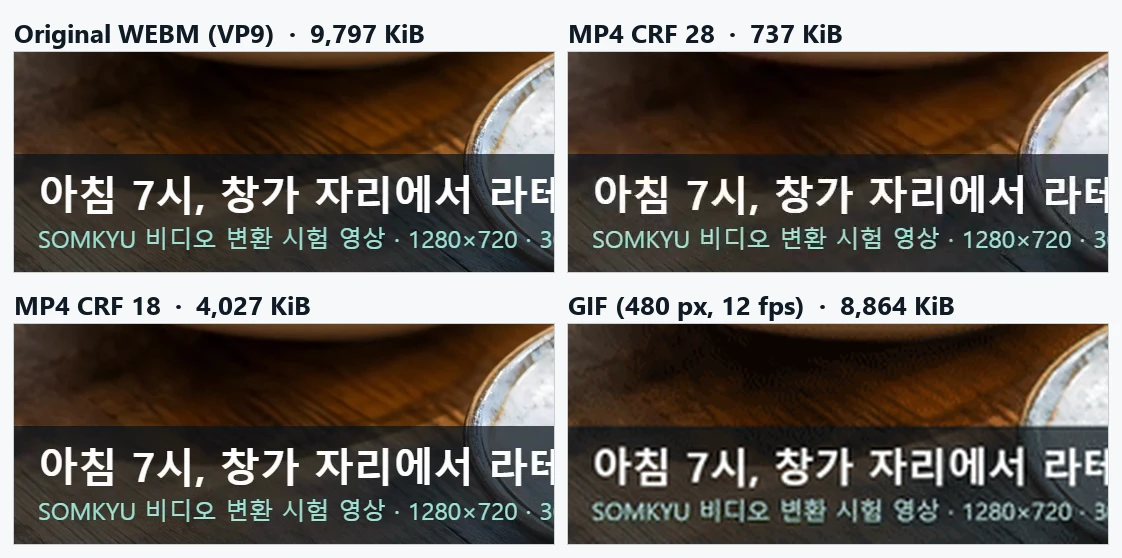
A lower CRF means higher quality. Going from CRF 28 to 18 made the file 5.5 times larger for a 5.6 dB gain. Large text such as captions stayed sharp even at CRF 28; the differences showed in fine texture like wood grain and the speckled cup. Use CRF 23 for phone viewing and CRF 18 for large screens or further editing.
GIF is not a “light” format. With less than half the resolution, 12 frames per second and no sound, it was still 5.7 times the size of MP4 Standard. GIF stores every frame as a 256-colour picture, an old approach that struggles with colourful, photographic scenes. Wherever video uploads are allowed, use MP4.
MOV was effectively the same file as MP4. This tool uses H.264 + AAC for both; only the container differs. If Final Cut Pro or similar needs ProRes MOV, export it from your editor.
WEBM (VP8) converted quickly but was larger than MP4 at the same setting with a lower score, because this tool uses the older VP8 codec with fast settings for compatibility.
Converting screen-recorded WEBM — a problem we found and fixed
Early in this test we converted a 10-second WEBM made with the browser's recording feature (MediaRecorder) to MP4. It took 247 seconds and produced 6.9 MiB. The log showed that the recording's irregular frame timing was being read as 1,000 frames per second, so thousands of duplicate frames were created.
This is common in screen recordings, webcam captures and meetings recorded in a browser, so on 2026-09-18 we changed the converter to keep the source's frame timing. After the fix, the same file converted in 14.7 seconds to 749 KiB. If a screen recording still converts unusually slowly, reload the page to make sure you have the latest version.
Steps and checks
- Prepare the engine in the video converter (about 31 MB, downloaded once) and test with a short file first.
- Convert to MP4 Standard, then check duration, orientation, sound at start and end, and lip sync.
- If it's too large, try CRF 28; if quality falls short, try CRF 18 and compare.
- Open the result where you will actually upload or play it. A successful conversion does not guarantee playback in every app.
Common mistakes
- Renaming the extension: calling a file .mp4 does not change the codec inside, so it may not play.
- Re-saving at high quality to beat the original: CRF 18 won't restore lost detail; it just makes the file bigger.
- Making every short loop a GIF: as shown, GIFs are huge. A short silent MP4 looks better almost everywhere.
- Converting long videos on a phone in one go: the browser may run out of memory. Use a computer or split the video.
How this tool works and its limits
Conversion runs in your browser with FFmpeg compiled to WebAssembly on a single thread. Nothing is uploaded, but input, output and working space all sit in memory, so even fairly short videos can fail on phones. The times above are from a PC and can differ several-fold on other devices.
Subtitle tracks, multiple audio tracks, HDR colour information and capture metadata are not preserved. Use this tool to make copies for sharing and playback, not to archive originals. Once the engine is loaded, an open page can attempt offline conversion, but the site cannot be opened fresh while offline.