
PNG vs JPEG vs WEBP: we converted a photo, a screenshot and a logo
The right image format depends less on which one is “best” and more on what is in the image. A photo, a screenshot full of text and a logo on a transparent background behave very differently under the same settings. For this guide we saved three kinds of images as PNG, JPEG and WEBP exactly the way this site's image converter does, then compared file size and quality.
The short answer
- Photos for the web or messaging: WEBP 85% was the most efficient, 38% smaller than JPEG at the same setting with almost identical quality scores.
- Screenshots with text: WEBP was smaller and cleaner than JPEG. Keep a PNG master if you will edit it or reuse it in documentation.
- Transparent logos: use PNG or WEBP. JPEG fills transparent areas with white.
- Use JPEG only when a program or upload form does not accept WEBP.
Quick picker
| Use | Format | Why |
|---|---|---|
| Blog or shop product photos | WEBP 85% | Best size-to-quality ratio for photos in our test |
| Forms that reject WEBP | JPEG 85% | Opens almost everywhere |
| Screenshots for manuals or reports | PNG (master) | Text edges stay exactly as captured |
| Screenshots on a web page | WEBP 85% | About 1/12 of the PNG size, less text smearing than JPEG |
| Transparent logos and icons | PNG or WEBP | JPEG cannot store transparency |
| Long-term photo archive | Camera original | Each conversion can change metadata and quality |
How we tested
Three sources: (1) a 2048×1536 photo-style image generated for this test, with wood grain, milk foam and a soft blurred background; (2) a real 1024×768 capture of this site's contact page; (3) a 1024×1024 transparent logo with soft semi-transparent edges and shadow.

Encoding used the browser canvas encoder, exactly like the image converter: no resizing, no background removal, and JPEG/WEBP at the tool's three levels (70%, 85%, 95%). As in the tool, JPEG was flattened onto white first. Environment: Chromium 152 on Windows, September 2026.
Quality is compared with PSNR, the pixel difference from the PNG original in dB; higher means closer to the original. Around 40 dB and above, differences are often hard to spot on screen, but PSNR does not always match human judgement, so check the zoomed figures too. KiB means 1024-byte units.
Result 1 — Photo: WEBP is the most efficient
| Format | Size | PSNR |
|---|---|---|
| PNG | 5,808.9 KiB | original |
| JPEG 70% / 85% / 95% | 261.3 / 391.1 / 726.1 KiB | 38.6 / 40.9 / 44.1 dB |
| WEBP 70% / 85% / 95% | 144.4 / 241.8 / 559.4 KiB | 37.8 / 40.5 / 44.4 dB |
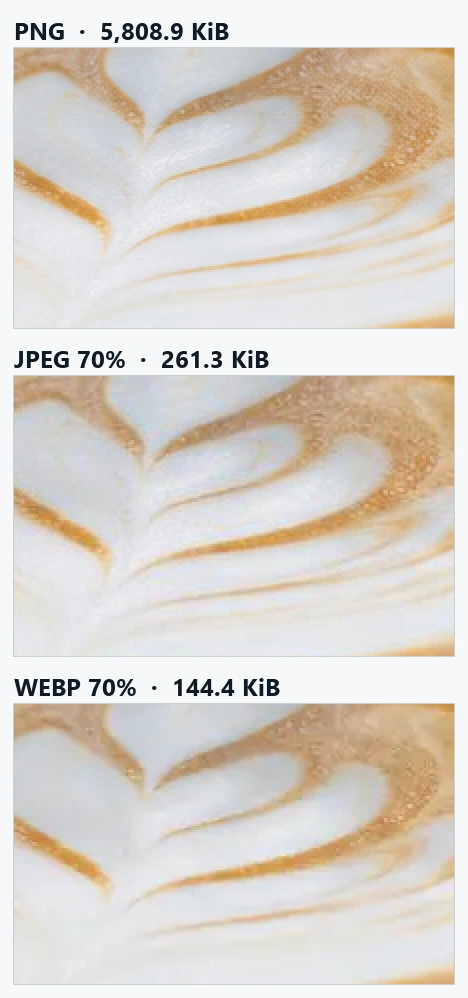
At 5.8 MB, PNG makes little sense for photos. WEBP 85% was 1/24 of the PNG and 38% smaller than JPEG 85% (391.1 KiB), with only 0.4 dB lower PSNR. At 70%, WEBP was just over half the size of JPEG.
The two formats lose detail differently. JPEG compresses in 8×8 blocks, so tiny bubbles turn blocky; WEBP tends to smooth texture away. At 100% zoom both were hard to tell apart. If texture matters and the photo will be shown large, use 85% or higher.
Result 2 — Screenshot with text: JPEG smearing is most visible
| Format | Size | PSNR |
|---|---|---|
| PNG | 300.9 KiB | original |
| JPEG 70% / 85% / 95% | 41.1 / 55.1 / 86.7 KiB | 38.3 / 41.6 / 44.4 dB |
| WEBP 70% / 85% / 95% | 20.1 / 26.0 / 40.6 KiB | 40.9 / 43.2 / 44.5 dB |
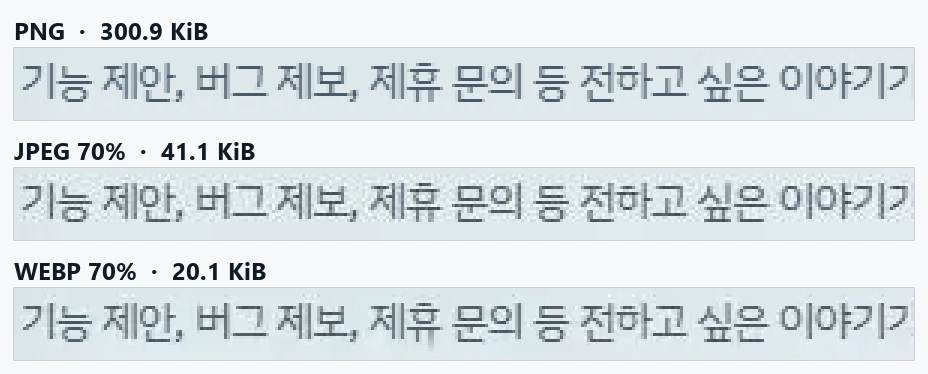
Unlike the photo, WEBP beat JPEG at every level on both size and PSNR. WEBP 85% (26.0 KiB) was less than half of JPEG 85% (55.1 KiB) and scored higher. JPEG struggles with sharp text edges, leaving blurry halos when zoomed.
PNG still has a place. If you will crop the screenshot later or draw annotations on it, every lossy save adds more artifacts. Keep the PNG master and export a WEBP copy for the web. This capture has translucent effects and gradients in the background, which is why the PNG reached 300 KiB; plain text on white would be much smaller.
Result 3 — Transparent logo: JPEG adds a white box
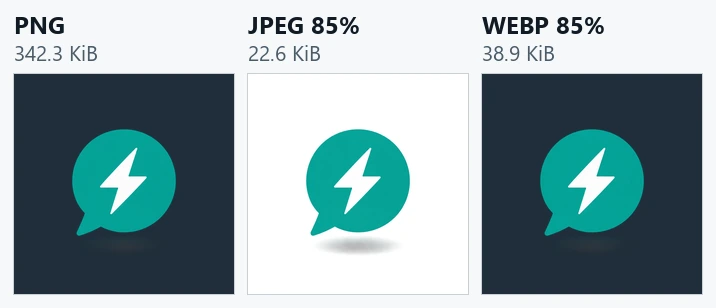
JPEG has no transparency channel, so this tool fills transparent pixels with white. That is invisible on a white web page but obvious on a dark background or a coloured banner. Semi-transparent shadows also freeze into a grey patch.
Here WEBP 85% (38.9 KiB) was larger than JPEG 85% (22.6 KiB) because WEBP also stores the transparency. That is the cost of the feature, not a flaw. PNG was 342.3 KiB, but for a logo you will edit or reuse, PNG is the safest master; convert only the web copy to WEBP.
Choosing 70%, 85% or 95%
Size grows quickly as the number goes up. For the photo, JPEG 95% was 2.8 times the size of 70% for a 5.5 dB gain. 85% is a sensible default.
- 70%: photos sent by message, small list thumbnails
- 85%: general web publishing such as blogs and product pages
- 95%: intermediate files for a printer or another editor; sending the original is better when possible
“85%” is an encoder setting, not a promise that 85% of the original quality remains, and the same number does not mean the same quality across formats.
Common mistakes
- Converting JPEG to PNG to “improve quality”: lost detail does not come back; only the file grows.
- Editing and re-saving a JPEG repeatedly: losses stack up. Save work in progress as PNG and convert once at the end.
- Saving a transparent logo as JPEG: you get a white background.
- Converting an animated GIF: this tool keeps only one frame as a still image. Use the video converter for MP4 or WEBM to keep the motion.
- Uploading WEBP everywhere: older software and some upload forms reject it. Re-save as JPEG if refused.
How this tool works and its limits
The image is redrawn in the browser and re-encoded, so metadata such as capture date, location and colour profile (EXIF, ICC) is not guaranteed to survive. Keep your photo originals. SVG exported to PNG becomes pixels, not a scalable vector. BMP output also flattens transparency to white and is large.
Background removal erases similar colours connected to the image edge, so it suits a solid logo on a white background. A subject matching the background or a busy photo may lose wanted pixels. It is not AI person or hair segmentation.
These numbers come from these three sources and the Chromium 152 encoder. Browser, version and image content can change the ranking, so for important images save all three formats in the tool and compare.