
MP3 vs OGG (Opus) vs WAV: we converted speech and music
“Which format, and how many kbps?” comes up whenever you share a recording or add sound to a game or video. The answer depends on what you recorded and where it will play. For this guide we ran Korean speech and a music clip through this site's audio converter at every quality level of MP3, OGG (Opus) and WAV, then compared file size and how much of the sound survived.
The short answer
- Speech (meetings, lectures, narration): OGG 64 kbps kept the whole voice band at 8.9% of the original size.
- Music: MP3 128 kbps cut everything above 16 kHz. OGG (Opus) kept close to 20 kHz even at 64 kbps.
- If you don't know the listener's device or software, MP3 is the safest choice; use 192 kbps or more for music.
- WAV is for intermediate editing files. This tool writes WAV at 48 kHz, so it came out about 9% larger than the 44.1 kHz original.
Quick picker
| Use | Setting | Why |
|---|---|---|
| Sharing meeting or lecture recordings | OGG 64 kbps or MP3 128 kbps | The voice band survives intact at low bitrates |
| Sending music to many people | MP3 192–320 kbps | Plays almost everywhere with little treble loss |
| Background audio on a website or app | OGG 96 kbps (check support) | Keeps the most treble for the size |
| Further editing | WAV | No loss builds up between saves |
| Game engine assets such as Unity | WAV or the engine's recommended format | The engine's Ogg Vorbis is not this tool's Ogg Opus |
How we tested
Two sources: (1) a 26-second meeting announcement made with Windows Korean text-to-speech (44.1 kHz, 16-bit, mono WAV, 2,242.7 KiB); (2) a 30-second synthesized music clip with chords, bass, kick and hi-hat (44.1 kHz, 16-bit, stereo WAV, 5,168.0 KiB). The hi-hat reaches close to 20 kHz on purpose.
Both files were converted with the audio converter's real conversion function at each quality level: Low, Standard and High are 128/192/320 kbps for MP3 and 64/96/160 kbps for OGG (Opus). We decoded the results, drew spectrograms (pictures of which pitches are present over time) and calculated the highest frequency that still carried sound. Environment: Chromium 152 on Windows, September 2026.
Result 1 — Music: low-bitrate MP3 cuts the treble
| Format / quality | Size | vs original | Highest frequency kept |
|---|---|---|---|
| Original WAV | 5,168.0 KiB | 100% | about 22.1 kHz |
| MP3 128 / 192 / 320 kbps | 469.1 / 703.7 / 1,172.8 KiB | 9.1 / 13.6 / 22.7% | 16.3 / 19.0 / 20.2 kHz |
| OGG (Opus) 64 / 96 / 160 kbps | 237.9 / 355.3 / 591.3 KiB | 4.6 / 6.9 / 11.4% | 20.4 / 20.4 / 20.4 kHz |
| WAV (tool output) | 5,625.0 KiB | 108.8% | about 21.6 kHz |
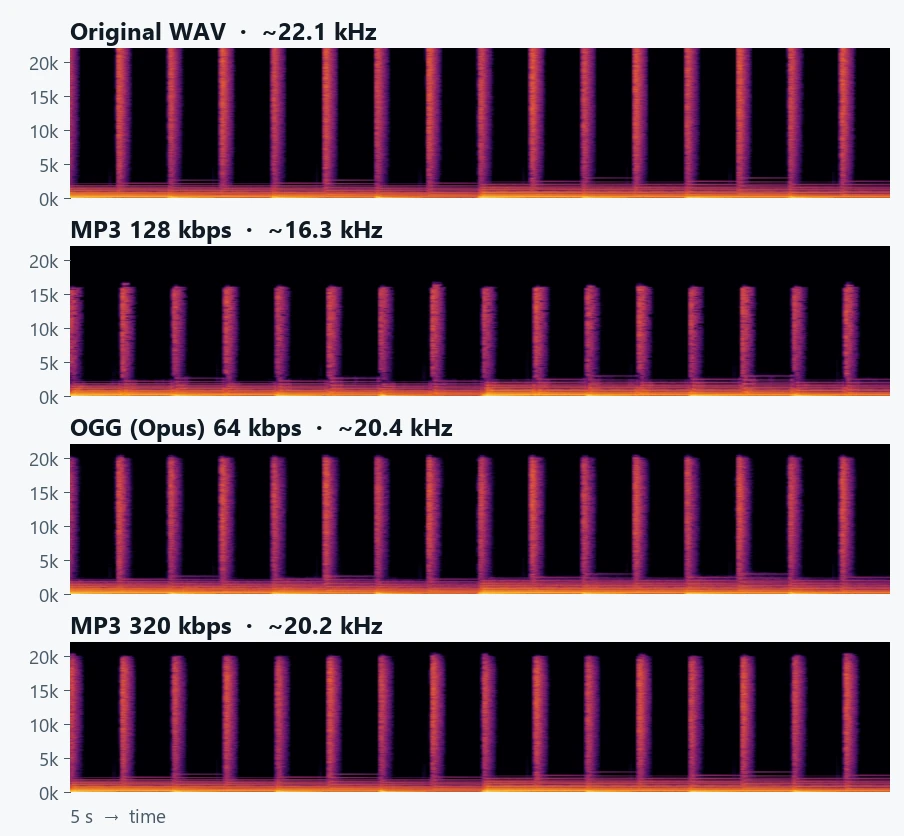
At low bitrates the MP3 encoder drops the highest frequencies first, where our hearing is least sensitive. Everything above 16.3 kHz vanished at 128 kbps and above 19.0 kHz at 192 kbps. Many people hear little above 16 kHz, especially with age, but this is where cymbals, hi-hats and strings get their “air”.
OGG (Opus) kept up to 20.4 kHz even at 64 kbps. Keeping the band does not mean every detail matches the original at low bitrates: Opus simplifies fine detail instead, so for music listen at 96 kbps or more before deciding. Encoding the 30-second clip took about 1.1–1.6 s for MP3 and 0.2–0.3 s for OGG.
Result 2 — Speech: low bitrates are enough
| Format / quality | Size | vs original | Highest frequency kept |
|---|---|---|---|
| Original WAV | 2,242.7 KiB | 100% | about 10.2 kHz |
| MP3 128 / 192 / 320 kbps | 407.2 / 610.9 / 1,018.1 KiB | 18.2 / 27.2 / 45.4% | about 10.2 kHz (all) |
| OGG (Opus) 64 / 96 / 160 kbps | 200.5 / 299.7 / 496.9 KiB | 8.9 / 13.4 / 22.2% | about 10.2 kHz (all) |
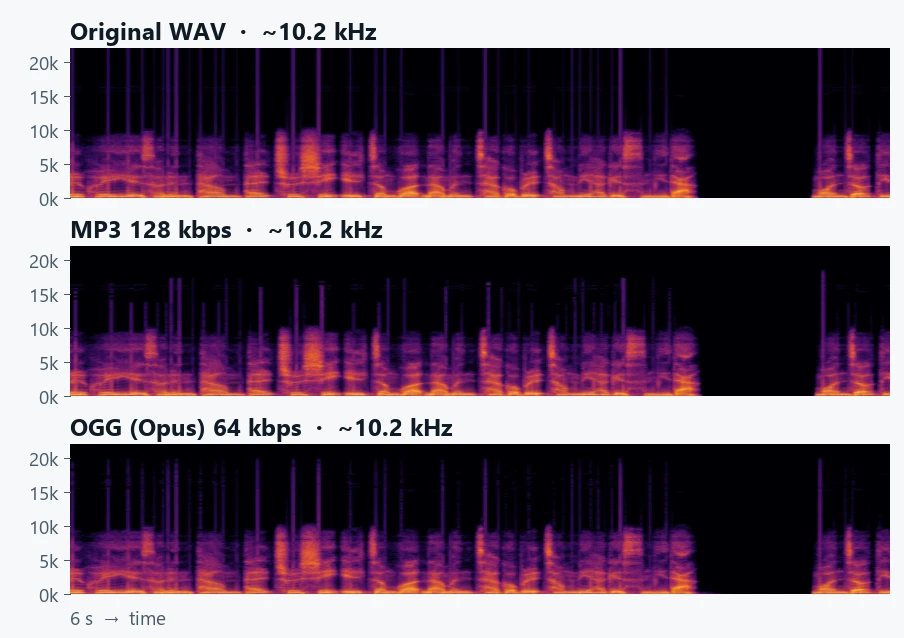
Most of a speaking voice lies below 10 kHz, so MP3 128 kbps and OGG 64 kbps kept the entire band of the original. Raising the bitrate only made the file bigger: a mono recording at MP3 320 kbps was five times the size of OGG 64 kbps with the same band kept.
The test voice is clean synthesized speech. Real recordings add background noise, room echo and several voices, so for an important recording listen to the low-bitrate result once before sending.
Why the WAV got bigger
The tool's WAV output was 8.8% larger than the original. The tool reads audio through the browser, which resamples it to its default rate, usually 48 kHz. A 44.1 kHz source saved at 48 kHz carries 48/44.1, about 1.09 times, as much data for the same length. Quality does not improve.
Use WAV only when you need a lossless intermediate file. Turning an MP3 into WAV does not restore the lost treble; it just makes the file ten times larger or more, as the table shows.
Ogg, Opus and Vorbis are different things
Ogg is a container; Opus and Vorbis are different codecs that can go inside it. This tool writes Opus inside Ogg, which is not the Ogg Vorbis listed in Unity's supported formats. For game assets, test a short file first or import WAV and let the engine compress it. Older phones, car stereos and some editors may not play Opus either.
Estimating file size
For a constant bitrate, size (bytes) ≈ bitrate (bps) × seconds ÷ 8. A one-hour lecture at OGG 64 kbps is 64,000 × 3,600 ÷ 8 = 28,800,000 bytes, about 27.5 MiB; MP3 128 kbps doubles that to about 55 MiB. A 44.1 kHz, 16-bit stereo WAV is about 10.1 MiB per minute, over 600 MiB per hour. If a file exceeds a messaging or email limit, check whether it could be mono before lowering the bitrate.
Common mistakes
- Re-saving an MP3 at 320 kbps or as WAV to “improve” it: discarded sound does not come back.
- Re-encoding an MP3 over and over: losses build up. Keep WAV while editing and compress once at the end.
- Sending OGG without knowing the listener's setup: if it won't play, you'll have to resend MP3.
- Using high bitrates for voice recordings: as shown above, only the size grows.
- Extracting audio from a video without checking the codec: the browser must be able to decode it.
How this tool works and its limits
Input can be any format your browser decodes (MP3, WAV, FLAC, M4A and more); output is OGG (Opus), MP3 or 16-bit PCM WAV. FLAC is input only. OGG output needs WebCodecs, available in Chrome, Edge and similar browsers. DRM-protected or damaged files will not open.
After conversion, MP3 files were about 0.03 s longer and OGG about 0.01 s longer because encoders add short padding. Check the result if seamless looping matters. These numbers come from two test sources and Chromium 152; for important files, save several settings in the tool and listen.