
Cutting MP3 and WAV: we measured where each format really starts and ends
When you make a ringtone or trim the ends of a recording, two questions come up: does it cut exactly where you want, and which format should you save it in? We saved the same range of the same clip as WAV, MP3 and OGG (Opus) with this site's Audio Cutter, decoded the results again and compared start position, length, sample values and size.
The short answer
- WAV matched the source sample for sample. When we cut 16-bit and 24-bit WAV sources and saved them as WAV, zero sample values differed.
- OGG (Opus) also kept the same start position and length (a 10 s range came out at 10.000 s), at about 7% of the WAV size.
- MP3 gained 25.1 ms (1,105 samples) of silence at the start, so a 10 s range became 10.031 s. That is fine for ringtones and sharing, but not for loops or exact alignment.
- Deleting a range and simply joining the rest can make the value jump at the seam and cause a click. This tool adds a 5 ms ramp at the join to remove that jump.
Which setting for which job
| Use | Suggested setting | Why |
|---|---|---|
| Phone ringtones and alerts (Android) | MP3 192 kbps, 2 s fade-out | Plays almost everywhere and the end fades naturally |
| Cleaning up meeting or lecture recordings | OGG 64 kbps or MP3 128 kbps | Speech is fine at low bitrates; "Delete the selection" removes breaks |
| Sound effects and music for video editing | WAV (same bit depth as the source) | Cutting again and again never changes the quality |
| Looping sounds for games and the web | WAV or OGG, no fades | The silence at the start of an MP3 leaves a gap on every repeat |
| Quick sharing in chat apps | MP3 128 kbps | Small, and plays on most recipients' devices |
How we tested
The source was the tool's built-in 20-second synthetic sample (44.1 kHz, 16-bit stereo WAV, 3.36 MB). It has four parts: a soft chord (0–5 s), a rhythm with a drum hit and a note every 0.25 s (5–12 s), a quiet gap (12–15 s) and bells (15–20 s). We cut 10 seconds starting at 5.000 s, saved it as 16-bit WAV, MP3 192 kbps and OGG (Opus) 96 kbps, decoded each result at 48 kHz in the browser and overlaid it on the source. A drum hit starts exactly at 5.000 s, so any offset shows immediately.
To measure positions more precisely we also saved a 30-second test file with short clicks at 1 s and 29 s, and we made separate 16-bit (44.1 kHz) and 24-bit (48 kHz) WAV files to compare sample values. Size and time for a one-minute range were measured by cutting 30–90 s from a three-minute 44.1 kHz stereo test tone. Measured in October 2026 in Chrome on a Windows PC.
Result 1 — start position and length: only MP3 starts late
| Format | Output length (10 s range) | Start position | Compared with the source |
|---|---|---|---|
| WAV 16-bit | 10.000 s | Same as the source | 0 of 882,000 sample values differ |
| OGG (Opus) 96 kbps | 10.000 s | Same as the source | Compressed again (lossy) |
| MP3 192 kbps | 10.031 s | 25.1 ms late | Compressed again (lossy) |
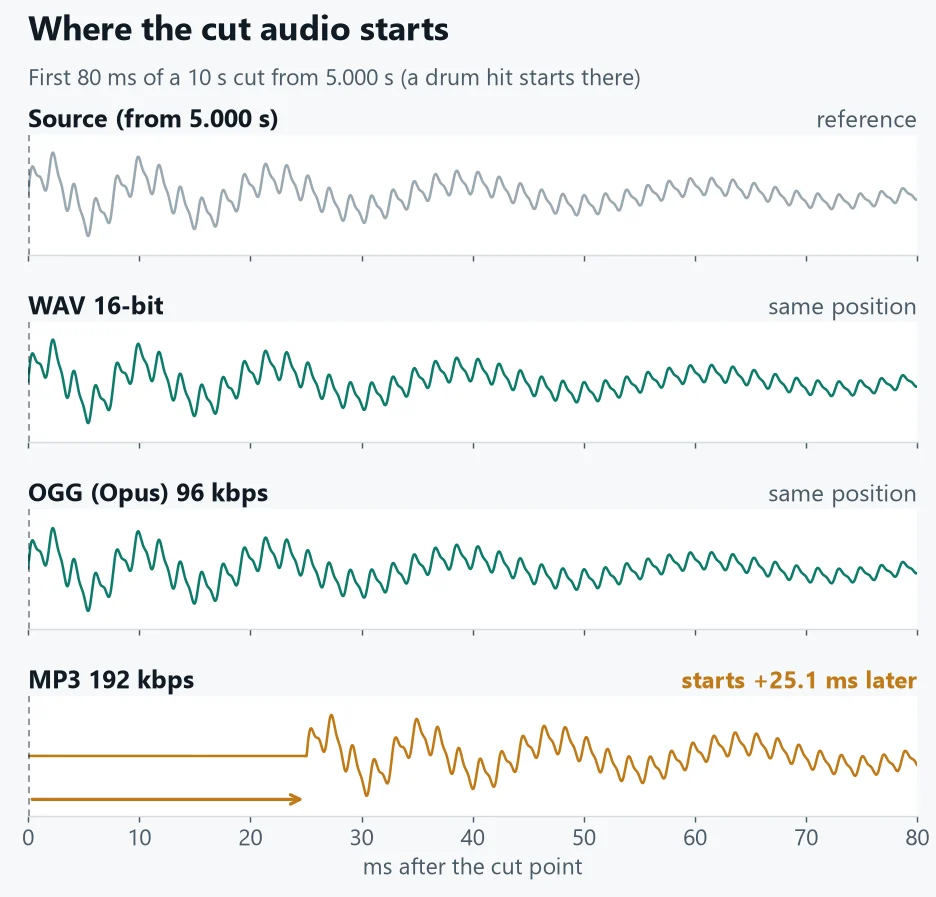
An MP3 encoder compresses audio in frames of 1,152 samples, and its design leaves about 1,105 samples of padding at the very start and fills the end up to a whole frame. That made the file 31 ms longer. When Chrome read back the MP3 this tool made, the padding was played as is.
Opus encoders also add a 312-sample warm-up at the start, but an OGG file can store a "pre-skip" value in its header so players drop those samples. This tool also writes the real length into the last page so the padding at the end is trimmed too, and the length matched the source. In the click test, the clicks at 1 s and 29 s came out exactly where they belong (samples 48,024 and 1,392,024 at 48 kHz).
Result 2 — size and processing time by format
| Format and quality | 10 s range | 1 min range | Time for 1 min |
|---|---|---|---|
| WAV 16-bit | 1,722.7 KiB | 10.09 MiB | 0.05 s |
| WAV 24-bit | 2,584.0 KiB | 15.14 MiB (calculated) | — |
| MP3 128 / 192 / 320 kbps | 156.7 / 235.1 / 391.8 KiB | 0.92 / 1.37 / 2.29 MiB | 4.0 / 4.2 / 4.9 s |
| OGG (Opus) 64 / 96 / 160 kbps | 79.9 / 119.3 / 198.6 KiB | 0.46 / 0.69 / 1.16 MiB | 0.6 / 0.6 / 0.8 s |
MP3 uses a constant bitrate, so its size is almost exactly "bitrate × length ÷ 8". OGG (Opus) uses a variable bitrate that depends on the content; here it stayed close to the setting, but real recordings can come out a little larger or smaller. MP3 took six to seven times longer because it uses a JavaScript encoder, while OGG uses the encoder built into the browser. WAV is not compressed, so even a one-minute range took 0.05 s.
Result 3 — fades and joins
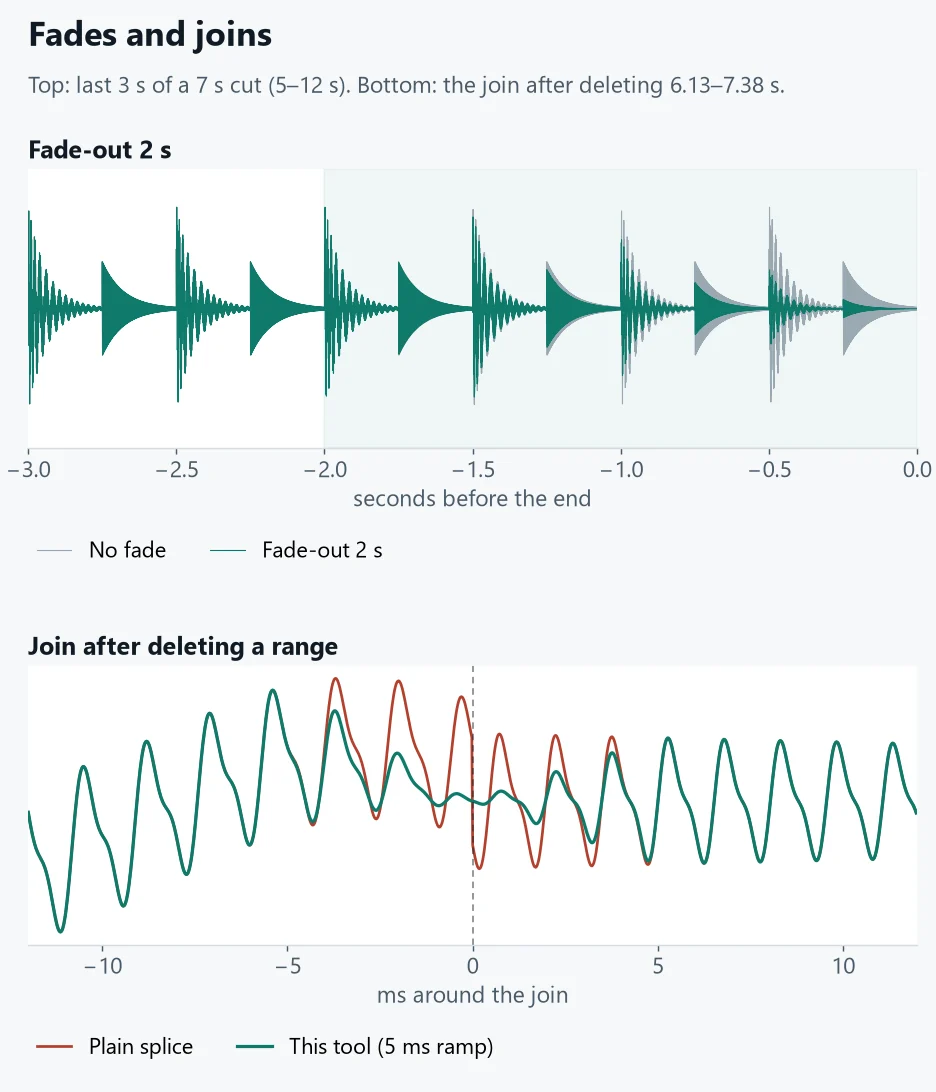
Sound is a constantly moving waveform, so cutting at an arbitrary point makes the value change suddenly at the end or at a join, and the speaker turns that change into a click. When you delete a range, the tool handles the join automatically, and you can add a fade-in and fade-out of 0.5 to 3 seconds to the start and end of what you keep. Fades follow a sine curve and are applied when saving, so check them in the result preview.
Why WAV keeps the source exactly
When a browser opens an audio file it usually converts it to its default sample rate, often 48 kHz. A 44.1 kHz source then becomes 48 kHz, and saving it as WAV no longer gives you the original file; this is also why this site's Audio Converter saves WAV at 48 kHz. The Audio Cutter first reads the sample rate from the file header (WAV, FLAC, MP3, AAC, OGG, M4A, WEBM) and decodes at that same rate.
Browsers also differ in how they turn 16-bit values into floating point: Chrome divides positive values by 32,767 and negative ones by 32,768. So the first time you save a 16-bit WAV, the tool decodes a tiny WAV once to check that ratio and reverses it exactly when saving. Before we added this check, 2,162 of 882,000 values in a saved 16-bit WAV were off by one.
Tips for cutting in exactly the right place
- Zoom in: make a rough selection on the full waveform, then use "Zoom to selection" to fine-tune the edges. At maximum zoom, 0.05 s fills the width of the screen.
- Mark while listening: press I (start) and O (end) during playback. Reactions tend to land 0.1–0.2 s late, so tidy up with the ±0.1 buttons.
- Pick the spot: cut speech in the quiet gap between words, and music just before a beat starts.
- If you know the time: type it into the start or end box, such as 1:15.250.
- Check loops: turn on "Loop selection" to hear right away whether the seam sounds natural.
Common mistakes
- Cutting an MP3 and saving it as MP3 again and again: every save compresses it again and the loss adds up. Keep files you will edit repeatedly as WAV.
- Saving loops as MP3: the 25 ms of silence at the start leaves a gap on every repeat.
- Ending in the middle of music without a fade: the end stops abruptly. Add at least a 0.5 s fade-out.
- Making an iPhone ringtone as MP3: iPhone ringtones need the M4R format.
- Opening long recordings on a phone: the whole file is decoded into memory, so an hour of 44.1 kHz stereo takes more than 1 GiB.
How this tool works and its limits
Input can be any format your browser can decode. Output is WAV (16- or 24-bit PCM, keeping the source sample rate and channels), MP3 (up to two channels at 32, 44.1 or 48 kHz) or OGG (Opus, 48 kHz, up to two channels). OGG can be saved only in browsers with WebCodecs, such as Chrome and Edge. Cutting compressed audio without re-encoding is not supported. The figures above come from synthetic test audio in Chrome on a Windows PC, so for important files always listen to the beginning and end in the result preview.